
17 KiB
micro:bit V2 MicroPython Cookbook (Updating)
This is the collection of notes, tricks and experiments on BBC micro:bit V2 and MicroPython.
See also BBC micro:bit V2 MicroPython documentation
About micro:bit's MicroPython
micro:bit's MicroPython is developed by Damien George. Like all other MicroPython variants, this is based on Python 3.4 and has most of the built-ins in a standard CPython 3.4. Of course, this also means features from newer Python and a lot of modules (built-in libraries) are unavaliable. There are also modules designed specifically for micro:bit or general microcontrollers.
As MicroPython is a dynamic/interpreted language like CPython, it is slower than Arduino's C++ and requires more memory. It is very easily to run out of memory on micro:bit V1 (which has only 16 KB RAM). For micro:bit V2 (128 KB RAM) this is no longer a big problem.
Nevertheless, Bluetooth support are still unavailable in both V1/V2 version.
Ask Help From REPL
REPL (Read-Evaluate-Print-Loop) or "Serial" in the official editor is a very useful testing tool. You may need to press Ctrl + C in the REPL screen to force the device enter REPL mode.
Get some help:
> help()
List all modules:
> help('modules')
To see what's inside a module or submodule/function/attribute:
> import microbit
> help(microbit)
> help(microbit.pin0)
> dir(microbit)
> dir(microbit.pin0)
Easter Eggs
Try to type these in the REPL:
> import this
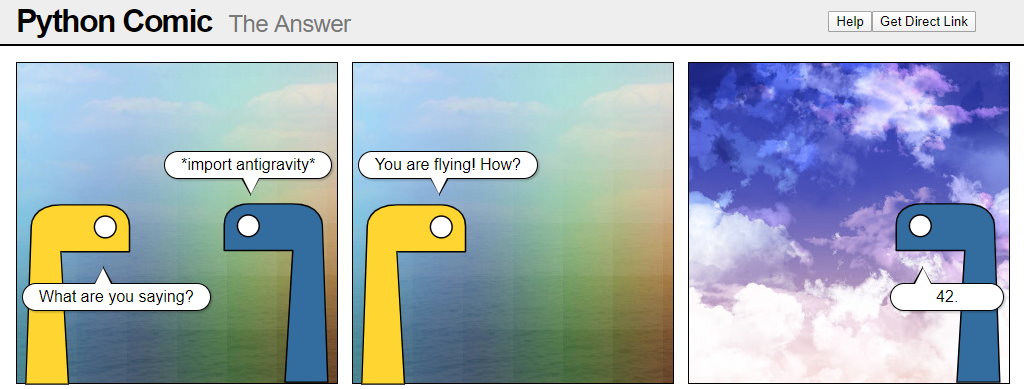
> import antigravity
> import love
Import * is a Bad Idea
In a lot of examples you may see
from microbit import *
Import does not "read" a module or function into memory; what it really does is to add variables pointing to all the stuff under module "microbit". So you can use these names directly without writing microbit.something.
But using * to import everything is still a bad practice. If you do this in standard Python, you might accidentally import things with conflicted names.
Instead, you should always explicitly import what you need:
from microbit import pin0, display, sleep
How Much Memory Left?
from micropython import mem_info

print(mem_info(1))
You can also use garbage collection to free some memory:
import gc

gc.enable()  # enable automatic memory recycle
gc.collect()  # force memory recycle
Classic Blinky (LED screen)
from microbit import display, Image, sleep

while True:
    display.show(Image.HEART)
    sleep(1000)
    display.clear()
    sleep(1000)
Classic Blinky (LED on pin 0)
This version controls an external LED connected between pin 0 and GND and uses time.sleep() module instead of microbit.sleep().
from microbit import pin0
import time

while True:
    pin0.write_digital(1)
    time.sleep(0.5)
    pin0.write_digital(0)
    time.sleep(0.5)
For both micro:bit V1/V2 you don't really need a resistor to protect the LED. The voltage and current from any pins (except the 3V pin) are low enough.
Blinky LEDs Without Using Sleep
Using the time module, the two LEDs on the LED screen would blink at different intervals.
from microbit import display
import time

delay1, delay2 = 500, 400
since1, since2 = time.ticks_ms(), time.ticks_ms()


while True:

    now = time.ticks_ms()

    if time.ticks_diff(now, since1) >= delay1:  # toogle LED (0, 0)
        display.set_pixel(0, 0, 9 if display.get_pixel(0, 0) == 0 else 0)
        since1 = time.ticks_ms()

    if time.ticks_diff(now, since2) >= delay2:  # toogle LED (4, 4)
        display.set_pixel(4, 4, 9 if display.get_pixel(4, 4) == 0 else 0)
        since2 = time.ticks_ms()
A More Convenient Pin Class?
Define a Pin class to repackage existing pin methods.
from microbit import pin1, pin2, sleep

class Pin:

    __slots__ = ['pin']  # not to use dictionary to store attributes in the class to save memory

    def __init__(self, pin):
        self.pin = pin

    def setPin(self, value):
        self.pin.write_digital(value)

    def setPWM(self, value):
        self.pin.write_analog(value)

    def getPin(self):
        self.pin.set_pull(self.pin.NO_PULL)
        return self.pin.read_digital()

    def getADC(self):
        try:
            return self.pin.read_analog()
        except:
            return 0

    def isPressed(self):
        self.pin.set_pull(self.pin.PULL_UP)
        return not self.pin.read_digital()

    def isTouched(self):
        try:
            self.pin.set_pull(self.pin.NO_PULL)
            return self.pin.is_touched()
        except:
            return False


led = Pin(pin1)  # external led at pin 1
button = Pin(pin2)  # external button at pin 2

while True:
    # light up LED when button is pressed
    led.setPin(button.isPressed())
    sleep(50)
Note: the external button needs to be "pulled up" with internal resistor so that micro:bit can read the input voltage change. Pin 5/11 (onboard button A/B) have their own internal pull-up resistors.
The external LED can be connected without a resistor, for the pin power output is 3.3V/6 mA only which is pretty harmless to any LEDs.
Simpler Alternate Pin Class
Use namedtuple (a tuple that elements have attribute names) as a simple Pin class. We point the pin methods to these attributes.
from microbit import pin1, pin2, sleep
from ucollections import namedtuple

Pin = namedtuple('Pin', ['setPin', 'setPWM', 'getPin', 'getADC', 'isTouched'])

def newPin(pin, pull_up=False):
    pin.set_pull(pin.PULL_UP if pull_up else pin.NO_PULL)
    return Pin(pin.write_digital, pin.write_analog, pin.read_digital, pin.read_analog, pin.is_touched)


led = newPin(pin1)
button = newPin(pin2, pull_up=True)

while True:
    led.setPin(not button.getPin())
    sleep(50)
Value Mapping
Translate a value in a range to its corresponding value in anoher range, similar to map() in Arduino or micro:bit MakeCode. Borrowed from here.
from microbit import display, sleep

def translate(value, leftMin, leftMax, rightMin, rightMax):
    leftSpan = leftMax - leftMin
    rightSpan = rightMax - rightMin
    valueScaled = float(value - leftMin) / float(leftSpan)
    return rightMin + (valueScaled * rightSpan)


while True:
    lightLevel = display.read_light_level()
    print(translate(lightLevel, 0, 255, 0, 1023))
    sleep(100)
Roll a Dice
Define dice images in a dictionary, and retrieve one using a random number when the shake gesture detected.
from microbit import display, Image, accelerometer, sleep
from random import randint

dices = {  # dictionary of 5x5 dice images
    1: '00000:00000:00900:00000:00000',
    2: '90000:00000:00000:00000:00009',
    3: '90000:00000:00900:00000:00009',
    4: '90009:00000:00000:00000:90009',
    5: '90009:00000:00900:00000:90009',
    6: '90009:00000:90009:00000:90009',
    }

while True:
    if accelerometer.was_gesture('shake'):  # if user has shaked micro:bit
        display.show(Image(dices[randint(1, 6)]))  # get a image in random
Fill LED Display
Light up every LEDs in a specific brightness level (default max):
from microbit import display, Image, sleep

def fillScreen(b=9):  # fill screen function, b = brightness (0-9)
    display.show(Image(':'.join([str(b) * 5] * 5)))


while True:
    # blink screen twice
    for _ in range(2):
        fillScreen()  # default = max brightness
        sleep(250)
        display.clear()
        sleep(250)

    sleep(500)

    # fade in
    for i in range(10):
        fillScreen(i)
        sleep(75)

    # fade out
    for i in reversed(range(10)):
        fillScreen(i)
        sleep(75)

    sleep(500)
LED Bar Graph
A 25-level LED progress bar, similar to the one you can use in the MakeCode JavaScript editor.
from microbit import display, Image, sleep

def plotBarGraph(value, max_value, b=9):
    order = (23, 21, 20, 22, 24,
             18, 16, 15, 17, 19,
             13, 11, 10, 12, 14,
             8, 6, 5, 7, 9,
             3, 1, 0, 2, 4,)
    counter = 0
    display.clear()
    for y in range(5):
        for x in range(5):
            if value / max_value > order[counter] / 25:
                display.set_pixel(x, y, b)
            counter += 1

while True:
    plotBarGraph(display.read_light_level(), 255)
    sleep(50)
The LED screen may flicker because read_light_level() uses LEDs themselves as light sensors (see this video).
Get Pitch and Roll Degrees
This is also something exists in MakeCode but not MicroPython. Be noted that the results would be outputed in the REPL console.
from microbit import accelerometer, sleep
from math import pi, atan2, sqrt

def rotationPitch():
    return atan2(
            accelerometer.get_y(),
            sqrt(accelerometer.get_x() ** 2 + accelerometer.get_z() ** 2)
            ) * (180 / pi)

def rotationRoll():
    return atan2(
            accelerometer.get_x(),
            sqrt(accelerometer.get_y() ** 2 + accelerometer.get_z() ** 2)
            ) * (180 / pi)


while True:
    print('Pitch:', rotationPitch(), ' / roll:', rotationRoll())
    sleep(100)
Servo Control
from microbit import pin0, sleep

class Servo:  # define a servo class
    def __init__(self, pin, degree=90):
        self.pin = pin
        self.degree = degree
        self.write(degree)

    def write(self, degree):
        self.pin.set_analog_period(20)
        self.pin.write_analog(round((degree * 92 / 180 + 30), 0))


servo = Servo(pin0)  # servo object

while True:
    servo.write(0)
    sleep(1000)
    servo.write(180)
    sleep(1000)
Do not use servos and buzzers at the same time. They require different PWM frequencies and most microcontrollers can only use one frequency accross all pins at a time.
micro:bit V2 can output 190 mA from its 3V pin, which is enough for most hobby servos.
NeoPixel Rainbow/Rotation Effect
This code is based on Adafruit's example with adjustable brightness level.
from microbit import pin0, sleep  # connect to pin 0
from neopixel import NeoPixel
from micropython import const

led_num      = const(12)   # number of NeoPixels
led_maxlevel = const(128)  # light level (0-255)
led_delay    = const(0)    # NeoPixels cycle delay

np = NeoPixel(pin0, led_num)

def wheel(pos):
    r, g, b = 0, 0, 0
    if pos < 0 or pos > 255:
        r, g, b = 0, 0, 0
    elif pos < 85:
        r, g, b = 255 - pos * 3, pos * 3, 0
    elif pos < 170:
        pos -= 85
        r, g, b = 0, 255 - pos * 3, pos * 3
    else:
        pos -= 170
        r, g, b = pos * 3, 0, 255 - pos * 3
    r = round(r * led_maxlevel / 255)
    g = round(g * led_maxlevel / 255)
    b = round(b * led_maxlevel / 255)
    return (r, g, b)

def rainbow_cycle(pos):
    for i in range(led_num):
        rc_index = (i * 256 // led_num) + pos
        np[i] = wheel(rc_index & 255)
    np.show()
    sleep(led_delay)


pos = 0
while True:
    rainbow_cycle(pos)
    pos = (pos + 1) & 255
Calcualte Fibonacci Sequence
from microbit import display

def Fibonacci(n):  # calculate nth number
    a = 0
    b = 1
    for i in range(n - 2):
        a, b = b, a + b
    return b

f = Fibonacci(42)
print(f)
display.scroll(f)
Below is the recursive version, which is a lot slower and you may get RuntimeError: maximum recursion depth exceeded for a bigger number.
from microbit import display

def Fibonacci(n):
    if n < 2:
        return n
    return Fibonacci(n - 1) + Fibonacci(n - 2)


f = Fibonacci(24)
print(f)
display.scroll(f)
Calcuate a List of Prime Numbers
Prime numbers (except 2, 3) are either 6n - 1 or 6n + 1. So we check if a number of 6n - 1/6n + 1 can be divided with any existing primes in the list. If not, it is a prime number and can be added to the list.
from microbit import display

def find_primes(n):  # calculate primes up to n
    primes = [2, 3]
    for p in range(6, n + 1, 6):
        for p_test in range(p - 1, p + 2, 2):
            for prime in primes:
                if p_test % prime == 0:
                    break
            else:  # only execute when for is not exited by break
                primes.append(p_test)
    return primes

primes = find_primes(50)
print(primes)
for prime in primes:
    display.scroll(prime)
Morse Code Machine
This allows you to enter your message into micro:bit and translate it to Morse code with the LED screen/buzzer. Go to the REPL mode and you'll see the promot.
from microbit import display, Image, set_volume, sleep
from micropython import const
import music

set_volume(255)  # speaker volume (0-255)
morse_delay = const(75)  # morse code delay speed

# morse code table
morse_code = {
    'A': '.-',
    'B': '-...',
    'C': '-.-.',
    'D': '-..',
    'E': '.',
    'F': '..-.',
    'G': '--.',
    'H': '....',
    'I': '..',
    'J': '.---',
    'K': '-.-',
    'L': '.-..',
    'M': '--',
    'N': '-.',
    'O': '---',
    'P': '.--.',
    'Q': '--.-',
    'R': '.-.',
    'S': '...',
    'T': '-',
    'U': '..-',
    'V': '...-',
    'W': '.--',
    'X': '-..-',
    'Y': '-.--',
    'Z': '--..',
    '1': '.----',
    '2': '..---',
    '3': '...--',
    '4': '....-',
    '5': '.....',
    '6': '-....',
    '7': '--...',
    '8': '---..',
    '9': '----.',
    '0': '-----',
}

while True:

    print('Enter your message: (Press enter to exit)')
    msg_str = input('> ').upper()
    if not msg_str:
        break

    morse_str = ''.join([morse_code[s] for s in msg_str
                         if s in morse_code])
    print('Message converted:\n', morse_str)

    for code in morse_str:
        music.pitch(392)
        display.show(Image.TARGET)
        sleep(morse_delay * (3 if code == '-' else 1))
        music.stop()
        display.clear()
        sleep(morse_delay)

    print('')
Text-based Group Chat
Load the code to at multiple micro:bits, each connected to a computer and enter the REPL mode. They will display any messages (250 characters max each) sent by other micro:bits on the same channel.
In order to send message, press A and enter text after the prompt. (Some incoming messages may be lost when you are typing. So you can also treat this as actual radio and use procedure words.)
RADIO_CHANNEL = 42

from microbit import display, Image, button_a, sleep
import radio

radio.config(group=RADIO_CHANNEL, length=250, power=7)
radio.on()

print('Receiving messages...')
print('Press A to send your message (max 250 characters each)')
display.show(Image.RABBIT)

while True:

    if button_a.is_pressed():
        text = input('Enter your message: ')
        if len(text) > 0 and len(text.strip()) > 0:
            to_be_send = text.strip()[:250]
            radio.send(to_be_send)
            print('YOU:', to_be_send)
        else:
            sleep(100)

    incoming = radio.receive()
    if incoming != None:
        print('MESSAGE:', incoming)

    sleep(50)
Radio Proximity Sensor
Load the code to two micro:bits. They will detect each other's radio signal strength and show it as LED bar graph. Can be used as an indoor treasure hunt game.
(This also works for micro:bit V1, however V1 is slower so there will be signal gap received by V2. So in order to mix V1 and V2, You'll have to either speed up V1 or slow down V2 loop delay.)
Due to some reason, the signal strength or RSSI changes very little regardless of transmite power. So I roughly remapped the value to 0-60 so that you can see the changes more clearly.
If there's no signal received the strength data would be set as zero.
RADIO_CHANNEL = 42

from microbit import display, sleep
import radio

def plotBarGraph(value, max_value, b=9):
    order = (23, 21, 20, 22, 24,
             18, 16, 15, 17, 19,
             13, 11, 10, 12, 14,
             8, 6, 5, 7, 9,
             3, 1, 0, 2, 4,)
    counter = 0
    display.clear()
    for y in range(5):
        for x in range(5):
            if value / max_value > order[counter] / 25:
                display.set_pixel(x, y, b)
            counter += 1


radio.config(group=RADIO_CHANNEL, power=7)
radio.on()

while True:

    radio.send('0')
    strength = 0.0
    data = radio.receive_full()

    if data:
        strength = data[1] + 255 - 155

    print('Signal strength:', strength)
    plotBarGraph(strength, 60)
    sleep(50)