mirror of
https://github.com/alankrantas/microbit-micropython-cookbook.git
synced 2026-01-05 03:40:46 +01:00

301 lines
8.2 KiB
Markdown
301 lines
8.2 KiB
Markdown
# micro:bit MicroPython Cookbook (Updating)
|
|
|
|
|
|
|
|
[BBC micro:bit MicroPython documentation](https://microbit-micropython.readthedocs.io/en/latest/index.html#)
|
|
|
|
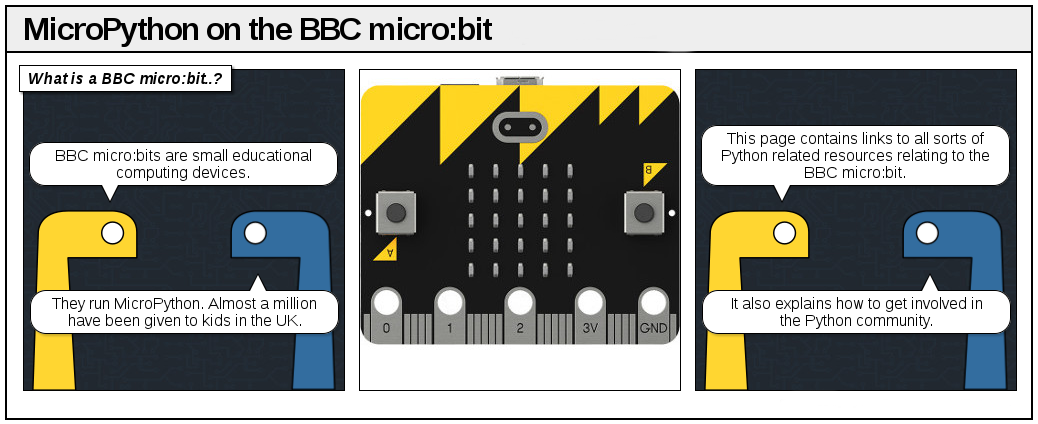
This is my notes, tricks and experiments for BBC micro:bit with MicroPython.
|
|
|
|
## Easer Eggs
|
|
|
|
Enter the following codes in [REPL](https://microbit-micropython.readthedocs.io/en/latest/devguide/repl.html):
|
|
|
|
```python
|
|
import this
|
|
import love
|
|
import antigravity
|
|
```
|
|
|
|
The result from <b>import this</b> is a version of [Zen of Python](https://www.python.org/dev/peps/pep-0020/) and <b>import antigravity</b> is from [original Python easter egg](https://xkcd.com/353/).
|
|
|
|
Also you can try
|
|
|
|
```python
|
|
this.authors()
|
|
love.badaboom()
|
|
```
|
|
|
|
## Some Lesser Known Facts
|
|
|
|
Since both Python and MicroPython are interpreted languages, they eat a lot of memory. Also, the hex file generated by micro:bit Python editors are consisted of 2 parts: the MicroPython firmware (up to 248 KB) and user's script (up to only 8 KB). See [Firmware Hex File](https://microbit-micropython.readthedocs.io/en/latest/devguide/hexformat.html). Which means it's not possible to build big projects with micro:bit's MicroPython.
|
|
|
|
One way to "minimize" your script size is to use one-space indents instead of 4.
|
|
|
|
Also, about how micro:bit get its own version of MicroPython: [The Story of MicroPython on the BBC micro:bit](http://ntoll.org/article/story-micropython-on-microbit) by Nicholas H. Tollervey, who also created the [Mu editor](https://codewith.mu/).
|
|
|
|
## Editor of Choice
|
|
|
|
The official [Python online editor](https://python.microbit.org/v/2.0) does not need installation and can be used anywhere with Internet and Chrome web browser. Support Web-USB. It's ok to use, really.
|
|
|
|
Personally, I would perfer [Mu editor](https://codewith.mu/) for any beginners. It has code check, (limited) auto-complete and can automatically detect/upload code to your micro:bit.
|
|
|
|
If you have experiences with MicroPython with ESP8266/ESP32 or CircuitPython, you can consider [Thonny](https://thonny.org/) which allows you to access micro:bit's REPL directly without having to upload hex file.
|
|
|
|
## Why You Shouldn't Use * For Import
|
|
|
|
The following import statement
|
|
|
|
```python
|
|
from microbit import *
|
|
```
|
|
|
|
is a bad idea. This imports everything of the microbit module even you don't need many of the features and wastes extra memory.
|
|
|
|
Instead, you should only import sub-modules you are going to use:
|
|
|
|
```python
|
|
from microbit import pin0, display, sleep
|
|
```
|
|
|
|
## How Much Memory Left?
|
|
|
|
```python
|
|
from micropython import mem_info
|
|
|
|
print(mem_info(1))
|
|
```
|
|
|
|
You can also try to turn on garbage collection if the memory is almost full:
|
|
|
|
```python
|
|
import gc
|
|
|
|
gc.enable() # auto memory recycle
|
|
gc.collect() # force memory recycle
|
|
```
|
|
|
|
## Fill LED Display
|
|
|
|
Light up every LEDs. Use fillScreen() as default.
|
|
|
|
```python
|
|
from microbit import display, Image, sleep
|
|
|
|
def fillScreen(b = 9):
|
|
f = (str(b) * 5 + ":") * 5
|
|
display.show(Image(f[:len(f)-1]))
|
|
|
|
|
|
while True:
|
|
|
|
for _ in range(2):
|
|
fillScreen()
|
|
sleep(100)
|
|
fillScreen(0)
|
|
sleep(100)
|
|
|
|
for i in range(9):
|
|
fillScreen(i)
|
|
sleep(50)
|
|
|
|
for i in reversed(range(9)):
|
|
fillScreen(i)
|
|
sleep(50)
|
|
```
|
|
|
|
## A More Convenient Pin Class
|
|
|
|
Make a Pin class to "rename" existing pin methods.
|
|
|
|
```python
|
|
from microbit import pin0, pin2, sleep
|
|
|
|
class Pin:
|
|
|
|
__slots__ = ["pin"]
|
|
|
|
def __init__(self, pin):
|
|
self.pin = pin
|
|
|
|
def set(self, value):
|
|
self.pin.write_digital(value)
|
|
|
|
def setPWM(self, value):
|
|
self.pin.write_analog(value)
|
|
|
|
def get(self):
|
|
self.pin.set_pull(self.pin.PULL_DOWN)
|
|
return self.pin.read_digital()
|
|
|
|
def pressed(self):
|
|
self.pin.set_pull(self.pin.PULL_UP)
|
|
return not self.pin.read_digital()
|
|
|
|
def getADC(self):
|
|
return self.pin.read_analog()
|
|
|
|
|
|
led = Pin(pin0)
|
|
button = Pin(pin2)
|
|
|
|
while True:
|
|
led.set(button.pressed())
|
|
sleep(50)
|
|
```
|
|
|
|
## Another Version of Pin Class
|
|
|
|
Use **namedtuple** as a simple Pin class. Save more memory than regular class.
|
|
|
|
```python
|
|
from microbit import pin0, pin2, sleep
|
|
from ucollections import namedtuple
|
|
|
|
Pin = namedtuple('Pin', ['set', 'get'])
|
|
|
|
def setPin(pin, pull_up=False):
|
|
pin.set_pull(pin.PULL_UP if pull_up else pin.PULL_DOWN)
|
|
return Pin(pin.write_digital, pin.read_digital)
|
|
|
|
|
|
led = setPin(pin0)
|
|
button = setPin(pin2, pull_up=True)
|
|
|
|
while True:
|
|
led.set(not button.get())
|
|
sleep(50)
|
|
```
|
|
|
|
## LED Bar Graph
|
|
|
|
A 25-level LED progress bar.
|
|
|
|
```python
|
|
from microbit import display, sleep
|
|
|
|
def plotBarGraph(value, maxValue, brightness=9):
|
|
bar = value / maxValue
|
|
valueArray = ((0.96, 0.88, 0.84, 0.92, 1.00),
|
|
(0.76, 0.68, 0.64, 0.72, 0.80),
|
|
(0.56, 0.48, 0.44, 0.52, 0.60),
|
|
(0.36, 0.28, 0.24, 0.32, 0.40),
|
|
(0.16, 0.08, 0.04, 0.12, 0.20))
|
|
for y in range(5):
|
|
for x in range(5):
|
|
display.set_pixel(x, y,
|
|
brightness if bar >= valueArray[y][x] else 0)
|
|
|
|
|
|
while True:
|
|
lightLevel = display.read_light_level()
|
|
plotBarGraph(lightLevel, 255) # or plotBarGraph(lightLevel, 255, 9)
|
|
sleep(50)
|
|
```
|
|
|
|
Since read_light_level() uses LEDs themselves as light sensors (see [this video](https://www.youtube.com/watch?v=TKhCr-dQMBY)), in this example a short delay is added, but the LED screen would still flicker a bit.
|
|
|
|
## Servo Control
|
|
|
|
```python
|
|
from microbit import pin0, sleep
|
|
|
|
def servoWrite(pin, degree):
|
|
pin.set_analog_period(20)
|
|
pin.write_analog(round((degree * 92 / 180 + 30), 0))
|
|
|
|
|
|
servoPin = pin0
|
|
|
|
while True:
|
|
servoWrite(servoPin, 0)
|
|
sleep(1000)
|
|
servoWrite(servoPin, 180)
|
|
sleep(1000)
|
|
```
|
|
|
|
Do not use servos and buzzers at the same time. They require different PWM frequencies and would most microcontrollers can only set one frequency accross all pins at a time. Also micro
|
|
|
|
## Value Mapping
|
|
|
|
Translate a value in a range to its corresponding value in anoher range. Borrowed from [here](https://stackoverflow.com/questions/1969240/mapping-a-range-of-values-to-another).
|
|
|
|
```python
|
|
def translate(value, leftMin, leftMax, rightMin, rightMax):
|
|
leftSpan = leftMax - leftMin
|
|
rightSpan = rightMax - rightMin
|
|
valueScaled = float(value - leftMin) / float(leftSpan)
|
|
return rightMin + (valueScaled * rightSpan)
|
|
```
|
|
|
|
## Get Pitch and Roll Degrees
|
|
|
|
These function cannot tell if the board is facing up or down. Probably need to use accelerometer.get_z() for that.
|
|
|
|
```python
|
|
from microbit import accelerometer, sleep
|
|
import math
|
|
|
|
def rotationPitch():
|
|
return math.atan2(
|
|
accelerometer.get_y(),
|
|
math.sqrt(accelerometer.get_x() ** 2 + accelerometer.get_z() ** 2)
|
|
) * (180 / math.pi)
|
|
|
|
def rotationRoll():
|
|
return math.atan2(
|
|
accelerometer.get_x(),
|
|
math.sqrt(accelerometer.get_y() ** 2 + accelerometer.get_z() ** 2)
|
|
) * (180 / math.pi)
|
|
|
|
|
|
while True:
|
|
print("Pitch:", rotationPitch(), " / roll:", rotationRoll())
|
|
sleep(100)
|
|
```
|
|
## NeoPixel Rainbow/Rotation
|
|
|
|
This code needs at least 3 LEDs in the NeoPixel chain. Of course, you can set a number (much) higher than actual LEDs to get smooth rainbow effects.
|
|
|
|
```python
|
|
from microbit import pin0, sleep
|
|
from neopixel import NeoPixel
|
|
from micropython import const
|
|
|
|
led_num = const(12)
|
|
led_maxlevel = const(64) # max 255
|
|
led_pin = pin0
|
|
|
|
np = NeoPixel(led_pin, led_num)
|
|
|
|
def showRainbow():
|
|
change_amount = int(led_maxlevel / (led_num / 3))
|
|
index = (0, int(led_num / 3), int(led_num / 3 * 2))
|
|
for i in range(led_num):
|
|
color = [0, 0, 0]
|
|
for j in range(3):
|
|
if abs(i - index[j]) <= index[1]:
|
|
color[j] = led_maxlevel - abs(i - index[j]) * change_amount
|
|
if color[j] < 0:
|
|
color[j] = 0
|
|
if i >= index[2]:
|
|
color[0] = led_maxlevel - (led_num - i) * change_amount
|
|
if color[0] < 0:
|
|
color[0] = 0
|
|
np[i] = tuple(color)
|
|
np.show()
|
|
|
|
def ledRotate():
|
|
tmp = np[led_num - 1]
|
|
for i in reversed(range(1, led_num)): # clockwise
|
|
np[i] = np[i - 1]
|
|
np[0] = tmp
|
|
np.show()
|
|
|
|
|
|
showRainbow()
|
|
|
|
while True:
|
|
ledRotate()
|
|
sleep(50)
|
|
```
|