mirror of
https://github.com/alankrantas/microbit-micropython-cookbook.git
synced 2026-01-26 14:00:20 +01:00

149 lines
6.7 KiB
Markdown
149 lines
6.7 KiB
Markdown
# 在 BBC micro:bit 上學 Python
|
||
|
||
作:Alan Wang, Feb 2021
|
||
|
||
本指南採用 [GNU 3.0 通用公共授權](https://www.chinasona.org/gnu/gnulgpl-v3-tc.html)
|
||
|
||
|
||
|
||
## 關於本指南
|
||
|
||
這份指南不是替兒童而寫,而是有興趣使用 BBC micro:bit 開發板為媒介來學習 Python 語言的成人或青少年。
|
||
|
||
現有的書籍或網路教材,在談及 micro:bit 的 Python 教學時,多半著重在 micro:bit 的功能和相關的範例,卻鮮少深入 Python 的語言特色。這份指南的目的是借用 micro:bit 的硬體特色來介紹 Python 的重要概念,好讓學習者將來能將之應用在正式的 Python 程式開發。
|
||
|
||
至於 micro:bit 是什麼、為什麼現在要學 Python,這些在網路上已經有非常多討論,這裡就不再贅述。
|
||
|
||
## 閱讀本指南所需的準備
|
||
|
||
本指南會使用 2020 年 10 月後上市的新版 [micro:bit V2](https://microbit.org/zh-tw/new-microbit/),但大部分程式碼也適用於 V1。筆者推薦使用 V2,因為價格相近但規格更佳,有更多記憶體執行 Python 直譯器。
|
||
|
||
你也需要 micro USB 線以及一台有 Google Chrome 瀏覽器的電腦,就這樣。不須安裝其他東西。
|
||
|
||
### Python 編輯器
|
||
|
||
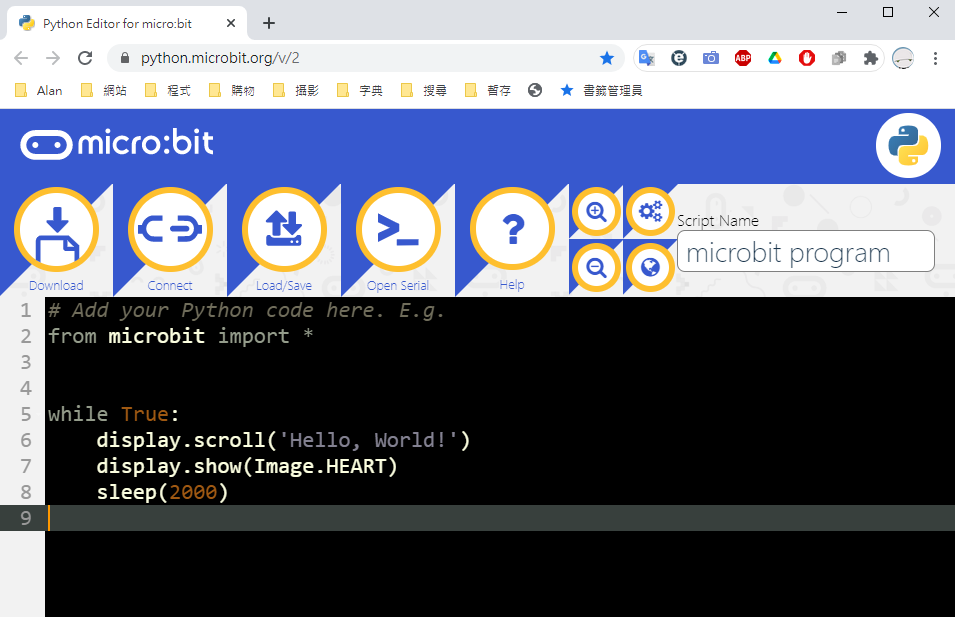
打開 https://python.microbit.org/v/2 :
|
||
|
||
|
||
|
||
這是 micro:bit 官方提供的線上版瀏覽器,雖然簡單,但就本指南的目的來說夠用了。後面有機會的話,筆者會在談如何使用其他 Python 編輯器。
|
||
|
||
畫面上方有五個大按鈕:
|
||
|
||
* Download/Flash (下載/燒錄)
|
||
* Connect/Disconnect (連線/解除連線)
|
||
* Load/Save (上載檔案/存檔)
|
||
* Open Serial/Close Serial (打開 REPL/關閉 REPL)
|
||
* Help (線上說明)
|
||
|
||
按鈕的內容會因與 micro:bit 連線與否而有所不同。
|
||
|
||
### 與 micro:bit 連線和燒錄第一支程式/韌體
|
||
|
||
Python 是直譯式語言,這表示程式運作的地方必須裝有直譯器。幸好,官方編輯器簡化了這個流程:你從編輯器下載的 .hex 程式檔中,有一部分會包著 micro:bit 用的 Python 韌體,剩下的則是你寫的程式(又稱草稿碼)。即使你的 micro:bit 之前並沒有安裝 Python 韌體,只要燒錄一次程式就會自動完成韌體安裝。這也使得第一次燒錄──或者在使用過其他語言後重新燒錄──Python 會花較久的時間。
|
||
|
||
> micro:bit 使用的 Python 實際上是 Micropython──設計給記憶體有限的開發版的 Python 版本。Micropython 本身就有好幾種版本,針對不同類型的開發板而作,不過它們都是是以 Python 3.4 為基礎。所以,Python 3.4 擁有的核心語言功能,在 micro:bit 都是可以使用的。
|
||
|
||
那麼,我們就來燒錄一支程式,直接用官方編輯器一打開就出現的程式即可:
|
||
|
||
```python
|
||
# Add your Python code here. E.g.
|
||
from microbit import *
|
||
|
||
|
||
while True:
|
||
display.scroll('Hello, World!')
|
||
display.show(Image.HEART)
|
||
sleep(2000)
|
||
```
|
||
|
||
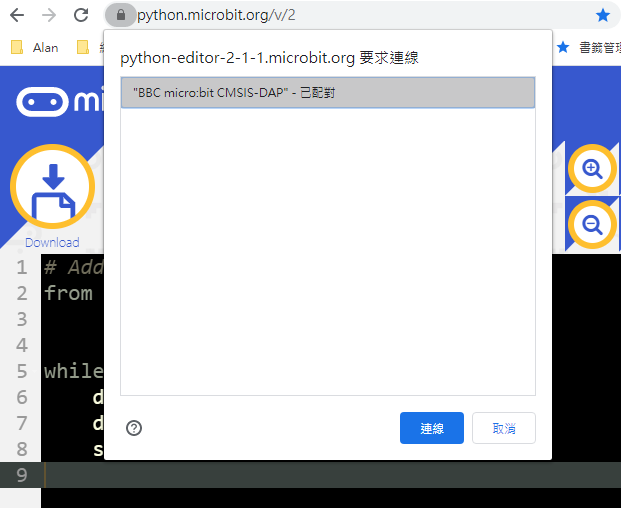
將 micro:bit 接上電腦,然後按畫面中的 **Connect**,讓 Chrome 瀏覽器跟你的裝置連線:
|
||
|
||
|
||
|
||
連線後按 **Flash**。等待程式燒錄作業結束。
|
||
|
||
> 較近期的 micro:bit 的韌體支援 WebUSB,讓瀏覽器能跟 USB 裝置連線,這麼一來編輯器就能直接下載程式到 micro:bit 上。現在市售的 micro:bit 應該都有新韌體了;但若你沒辦法連線,請用 Download 下載 .hex 檔後複製/貼上到 micro:bit 的 USB 磁碟區。
|
||
|
||
## REPL 互動介面
|
||
|
||
想學 Python,就不可不知 **REPL**(Read-Eval-Print Loop,讀取-求值-輸出循環)。簡單說,這是 Python 直譯器的互動介面,能讓開發者用來做簡單的測試、探索 Python 的功能、讀取程式的回應等等,不管在電腦或開發板上,對程式開發者來說都是很實用的工具。
|
||
|
||
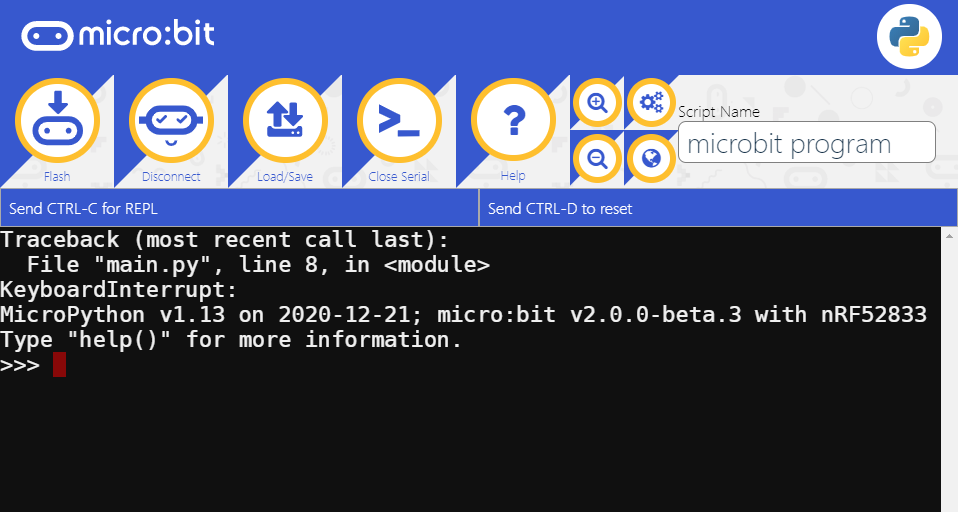
在 micro:bit 連線的情況下,點編輯器的 **Open Serial**,然後點按鈕下方右側的「Send CTRL-C for REPL」或直接在鍵盤上按 Ctrl+C。你應該會看到以下畫面:
|
||
|
||
|
||
|
||
這幾行文字
|
||
|
||
```
|
||
MicroPython v1.13 on 2020-12-21; micro:bit v2.0.0-beta.3 with nRF52833
|
||
Type "help()" for more information.
|
||
>>>
|
||
```
|
||
|
||
就是 REPL 的提示,類似 Windows 命令提示字元或 Unix 的終端機。它告訴我們 Python 直譯器的版本,並等待我們輸入指令。
|
||
|
||
現在於 >>> 後面輸入 1 + 2,並按 Enter:
|
||
|
||
```
|
||
>>> 1 + 2
|
||
3
|
||
```
|
||
|
||
可以發現 Python 直譯器解讀了你輸入的程式,並自動算出答案。
|
||
|
||
現在,照 REPL 提示所說的輸入 help():
|
||
|
||
```
|
||
>>> help()
|
||
Welcome to MicroPython on the micro:bit!
|
||
|
||
Try these commands:
|
||
display.scroll('Hello')
|
||
running_time()
|
||
sleep(1000)
|
||
button_a.is_pressed()
|
||
What do these commands do? Can you improve them? HINT: use the up and down
|
||
arrow keys to get your command history. Press the TAB key to auto-complete
|
||
unfinished words (so 'di' becomes 'display' after you press TAB). These
|
||
tricks save a lot of typing and look cool!
|
||
|
||
Explore:
|
||
Type 'help(something)' to find out about it. Type 'dir(something)' to see what
|
||
it can do. Type 'dir()' to see what stuff is available. For goodness sake,
|
||
don't type 'import this'.
|
||
|
||
Control commands:
|
||
CTRL-C -- stop a running program
|
||
CTRL-D -- on a blank line, do a soft reset of the micro:bit
|
||
CTRL-E -- enter paste mode, turning off auto-indent
|
||
|
||
For a list of available modules, type help('modules')
|
||
|
||
For more information about Python, visit: http://python.org/
|
||
To find out about MicroPython, visit: http://micropython.org/
|
||
Python/micro:bit documentation is here: https://microbit-micropython.readthedocs.io/
|
||
```
|
||
|
||
這是 micro:bit 的 MicroPython 內建的訊息,包含一些簡單的指引。注意到這兒也提到了 Ctrl+C 和 Ctrl+D,前者是用來中斷 micro:bit 目前執行的程式(程式執行時不會出現前面的提示),而 Ctrl+D 是用來強迫 micro:bit 重開機,以便重新測試程式。
|
||
|
||
現在試試這個:
|
||
|
||
```
|
||
>>> help('modules')
|
||
__main__ math os ucollections
|
||
audio microbit radio urandom
|
||
builtins micropython speech ustruct
|
||
gc music sys utime
|
||
machine neopixel uarray
|
||
Plus any modules on the filesystem
|
||
```
|
||
|
||
現在 REPL 列出了 MicroPython 中的所有模組(module)。之後我們會看到它們是什麼,以及要如何使用。
|
||
|
||
## Python 的基礎:陳述/運算式,物件,模組
|
||
|
||
|
||
(持續寫作中...)
|
||
|